
How to Use the Library Catalogue
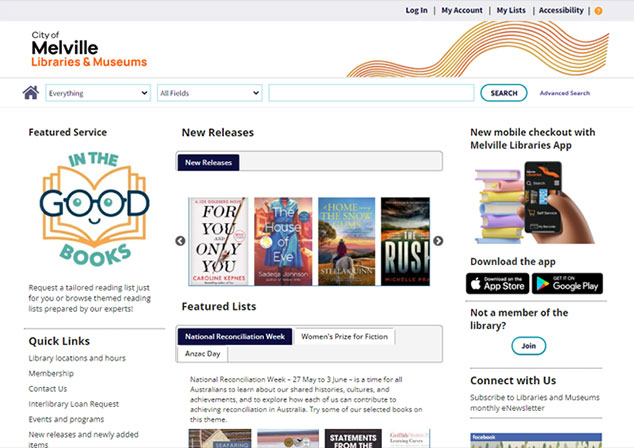
To find items in our catalogue, enter your search term into the search bar and then click SEARCH. You can also use the drop down menus on the left to limit your search to more specific results, or use the Advanced search button on the right hand side for more precise searching.
On the next page, you can use the options under Limit Search Results to filter your results. These options appear on the left hand side of the screen, and allow you to limit your search results by format, author, subject and more.
If you are a member of City of Melville Libraries, click Log In at the top of your screen – you will need your library card number and PIN. Don’t worry if you forget to log in, you can still search the catalogue and will be prompted to log in if you want to place a hold or download an eBook or eAudiobook. Not a member of the library? You can join online and log in to reserve items before visiting the library to complete your registration.
If you are not already a member and are aged 18 or over, you can register by clicking the Join Online button on the catalogue home page. Joining online will allow you to place holds on library materials immediately. To borrow items and access our collection of eBooks and eAudiobooks, complete your membership and collect your library card by visiting one of our libraries and showing your ID to a staff member.
Once you have logged in, click My Account at the top of your screen to view and manage your personal information, checkouts, recent loan history, and holds. My Account replaces the My Details screen you may have used in our old catalogue.
With our online library catalogue, you can create personal lists. You may like to use this feature to create lists of items to borrow in future. To create a new list, make sure you are logged in, select My Lists from the top right of the page and then click on the ‘Add list’ icon on the left hand side. You can then add any items that you wish directly from the catalogue.
If you find an item you would like to reserve, click the Place Hold button to request it – next, select your Pickup Library and click Place Hold(s) to confirm your reservation. You will be notified by email or SMS (for those without an email address) once your item is available to collect.
FAQs
Borrowed items may be renewed up to two times if not requested by another user. Eligible items will be automatically renewed on the due date.
If you would like to manually renew an item before its due date, you may login to My Account to renew it. After logging in, click My Account and then select the Checkouts tab. Tick the checkbox to the left of the title(s) that you wish to renew, and then click Renew. Your loan will be extended for an additional 3 weeks from the date it is renewed.
Digital Checkouts displays a list of all the eBooks and eAudiobooks that you currently have checked out. Library Checkouts displays a list of all the physical library items that you currently have checked out.
eBooks and eAudiobooks display in the catalogue search results, just like regular library items. To borrow these items simply click Download, or click Place Hold if it is not currently available.
For physical items, the number of existing holds is displayed below the author and title details. This doesn’t happen for eBook and eAudiobooks. To find out how long you need to wait to access a digital title, use the website or app of the eBook / eAudiobook provider. Follow the links from our ELibrary page.
After logging in, click My Account and then select the Holds tab. Tick the checkbox to the left of the hold(s) that you wish to cancel or suspend, and then click Cancel Hold(s) or Suspend Hold(s).
To update your email address, click My Account and then select the Personal Information tab and click Edit Email Address. If you need to update your address, phone number, or any other information, contact library staff.
Click the ‘home’ button, which appears at the left hand side of the search bar: 
If you have searched the catalogue and cannot find what you are looking for, you can make an Inter-Library Loan Requests.
At the Log In screen just click Forgot my PIN, then enter your library card number. You will be emailed instructions for resetting you PIN.
Contact library staff to organise a replacement library card.
Make sure your internet browser is up to date. We recommend using Chrome, Firefox, Safari, or Internet Explorer 11. If you continue to have problems, please contact library staff.
Speak to Library staff, contact us by phone on 9364 0138 or email us at library@melville.wa.gov.au.
.jpg?language=en)
Download the Melville Libraries app
Our library app is back - as of Friday, 1 March 2024.Handy features of the app include:
• Search our catalogue of physical and digital items
• Place holds, manage items out and renewals
• Scan your library card and it’s always with you
• Link family library accounts
• Find your closest branch of City of Melville Libraries
• View upcoming events at the libraries
• Easily find the libraries' social media channels
• Mobile check out feature. Skip the queues at the kiosk or check out items as you browse. Speak to your friendly staff to find out more.


Interlibrary Loan Request
If you are unable to locate the item that you are looking for in our Library Catalogue we may be able to obtain it from another library for you. Items requested take at least one week to arrive, but for extremely popular titles they may take significantly longer.
Please note: You can only request items that are over 12 months old and we can only get DVD titles that are part of a series.
Interlibrary Loan Delays
Service update (December 2025): Our interlibrary loan service is moving to a new state-wide system. During this time, requests will take longer than usual to supply.
We’re still accepting requests, but most can't be processed until the new system launches in early 2026. If your request is urgent, please check the State Library of Western Australia’s catalogue to see where items may be available to borrow directly.